
Exporting your Job Sheet
To see detailed information about the pools you are working at, the staff you are working with, and the school’s booked into each session, you can download a Job Sheet from Dash.
To do this first login to your Dash account here – https://schoolswimming.dashapp.com.au/auth/login. Ensure you login to your Swim Staff account, which is the account you would have used to process your staff application.
Once logged in you will be directed to your Dashboard. From here you will see your name, an “Export job sheets” button, any upcoming bookings you have as well as your recent Dash applications.
To generate your job sheet, click “Export job sheets”.
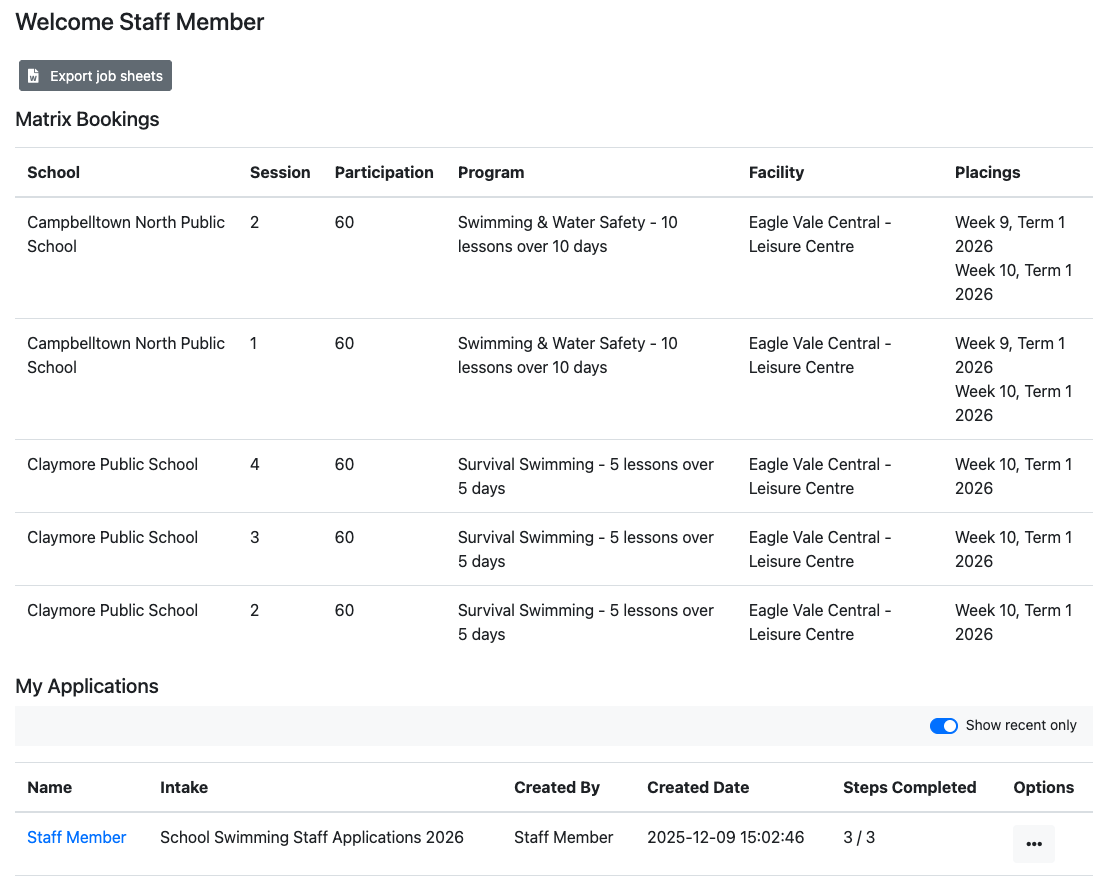
After clicking “Export job sheets” you will be asked to select which delivery season and (optionally) which term/week you’d like to include in your sheet.
Note: School Swimming & Water Safety programs span two calendar years, running across Terms 3 and 4 into Terms 1 and 2. You’ll be asked to select the delivery season start year for your export. If you’re looking to export job sheets for Term 1 or Term 2, make sure you select the previous calendar year as the delivery season start year.
Ensure the correct delivery season is select, and if required, enter the term and weeks relevant to your export, then click “Export”.
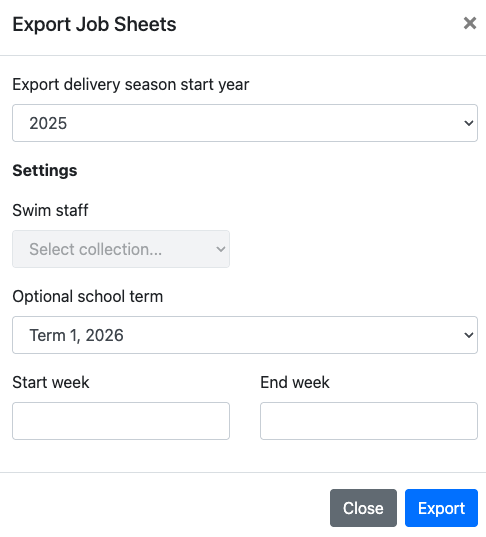
Depending on the size of the export it will either download directly in your browser, or be emailed to you as an attachment.
Last updated: February 4, 2026